

Email marketing is easier when you manage contacts, campaigns, and follow-up tasks from a single platform instead of multiple tools. Automating repetitive marketing tasks also helps you communicate more consistently with customers and leads while reducing manual work.
Mautic is an open-source marketing automation platform that helps you manage contacts, automate campaigns, send marketing emails, and monitor engagement. In this guide, you'll deploy Mautic on a BaCloud VPS running Ubuntu 26.04 LTS using Docker Compose, configure persistent storage, and secure the installation with HTTPS using Nginx.
Prerequisites
-
A BaCloud VPS running Ubuntu 26.04 LTS.
-
SSH access with a sudo-enabled user.
-
A domain or subdomain pointing to the VPS public IP address.
-
Docker Engine and Docker Compose V2 (docker compose) installed. If Docker is not already installed, follow our How to Install and Set Up Docker on Ubuntu 26.04 guide before continuing.
For a smoother, production-style deployment, we recommend a VPS with 2 vCPU, 4 GB RAM, and 40 GB NVMe storage.
Step 1: Update Ubuntu
Before installing Mautic, update the package index and install available system updates.
sudo apt update && sudo apt upgrade -yAfter the update completes, continue with the Docker verification step.
Step 2: Verify Docker Installation
Before deploying Mautic, verify that Docker Engine and Docker Compose V2 are installed.
Check the installed Docker version.
docker --versionIf Docker is installed, you should see output similar to:

Next, verify that Docker Compose V2 is available:
docker compose versionIf the Docker Compose plugin is installed, the command displays the installed version.
Step 3: Create the Mautic Project Directory
Create and enter a dedicated directory for the Mautic deployment files.
mkdir ~/mautic && cd ~/mauticThis directory will store the Docker Compose file and environment configuration used for the deployment.
Step 4: Configure Environment Variables
Create a .env file to store the database credentials used by MariaDB and Mautic.
nano .envAdd the following environment variables for the MariaDB container:
MARIADB_DATABASE=mautic
MARIADB_USER=mautic
MARIADB_PASSWORD=your_secure_password
MARIADB_ROOT_PASSWORD=your_secure_root_password
Replace the placeholder passwords with strong, unique values before saving the file.
Restrict access to the environment file:
chmod 600 .envThis limits access to the file to its owner, helping protect the database credentials.
Step 5: Configure Mautic Environment Variables
Create a .mautic_env file to define the message queue settings used by Mautic.
nano .mautic_envAdd the following configuration:
MAUTIC_MESSENGER_DSN_EMAIL=doctrine://defaultMAUTIC_MESSENGER_DSN_HIT=doctrine://defaultSave the file and restrict access to it:
chmod 600 .mautic_envThese settings configure Mautic's email and hit message queues to use Doctrine. The database connection settings will be defined separately in the Docker Compose configuration in the next step.
Step 6: Create the Docker Compose Configuration
Create the compose.yml file to define the Mautic application, MariaDB database, background worker, scheduled tasks, and persistent storage.
nano compose.ymlAdd the following configuration:
services: db: image: mariadb:11.4 restart: unless-stopped environment: MARIADB_DATABASE: ${MARIADB_DATABASE} MARIADB_USER: ${MARIADB_USER} MARIADB_PASSWORD: ${MARIADB_PASSWORD} MARIADB_ROOT_PASSWORD: ${MARIADB_ROOT_PASSWORD} volumes: - mysql-data:/var/lib/mysql healthcheck: test: ["CMD", "healthcheck.sh", "--connect", "--innodb_initialized"] start_period: 10s interval: 5s timeout: 5s retries: 10 mautic_web: image: mautic/mautic:7.2.1-20260923-apache restart: unless-stopped ports: - "127.0.0.1:8080:80" environment: &mautic-environment MAUTIC_DB_HOST: db MAUTIC_DB_PORT: 3306 MAUTIC_DB_DATABASE: ${MARIADB_DATABASE} MAUTIC_DB_USER: ${MARIADB_USER} MAUTIC_DB_PASSWORD: ${MARIADB_PASSWORD} DOCKER_MAUTIC_ROLE: mautic_web env_file: - .mautic_env volumes: &mautic-volumes - mautic-config:/var/www/html/config - mautic-logs:/var/www/html/var/logs - mautic-files:/var/www/html/docroot/media/files - mautic-images:/var/www/html/docroot/media/images healthcheck: test: ["CMD", "curl", "-f", "http://localhost"] start_period: 10s interval: 10s timeout: 5s retries: 30 depends_on: db: condition: service_healthy mautic_cron: image: mautic/mautic:7.2.1-20260923-apache restart: unless-stopped environment: <<: *mautic-environment DOCKER_MAUTIC_ROLE: mautic_cron env_file: - .mautic_env volumes: *mautic-volumes depends_on: db: condition: service_healthy mautic_web: condition: service_healthy mautic_worker: image: mautic/mautic:7.2.1-20260923-apache restart: unless-stopped environment: <<: *mautic-environment DOCKER_MAUTIC_ROLE: mautic_worker env_file: - .mautic_env volumes: *mautic-volumes depends_on: db: condition: service_healthy mautic_web: condition: service_healthyvolumes: mysql-data: mautic-config: mautic-logs: mautic-files: mautic-images:Save and close the file.
The configuration runs Mautic with MariaDB and separates the web application, scheduled tasks, and background queue processing into individual services. Docker Compose waits for the database to become healthy before starting the Mautic services. Named volumes preserve the database and Mautic configuration, logs, and uploaded media across container recreations.
The web interface is bound to 127.0.0.1:8080 so Nginx can serve it through the domain configured in a later step.
Step 7: Start Mautic
From the ~/mautic directory, run the following command to download the required images and start the containers in the background.
docker compose up -dDocker Compose will create the containers and start the services defined in compose.yml.
Once the command finishes, check the status of the containers:
docker compose psConfirm that the database and Mautic services have started. The initial startup may take a little time while Docker downloads the images and initializes the services.
If a service fails to start or reports an unhealthy status, inspect its logs before proceeding:
docker compose logs --tail=100
Step 8: Configure the Firewall
Allow SSH connections so you can continue managing the VPS remotely.
sudo ufw allow OpenSSHAllow HTTP and HTTPS traffic for Nginx.
sudo ufw allow 'Nginx Full'These rules allow SSH connections and web traffic on ports 80 and 443. Mautic listens on 127.0.0.1:8080, so its application port does not need to be exposed publicly.
Check the firewall status:
sudo ufw statusIf UFW is inactive, make sure SSH access is allowed before enabling it.
Step 9: Configure Nginx as a Reverse Proxy
Create an Nginx server block for your Mautic domain:
sudo nano /etc/nginx/sites-available/mauticAdd the following configuration, replacing mautic.example.com with your actual domain:
server { listen 80; server_name mautic.example.com; location / { proxy_pass http://127.0.0.1:8080; proxy_set_header Host $host; proxy_set_header X-Real-IP $remote_addr; proxy_set_header X-Forwarded-For $proxy_add_x_forwarded_for; proxy_set_header X-Forwarded-Proto $scheme; }}Save and close the file.
Enable the configuration by creating a symbolic link:
sudo ln -s /etc/nginx/sites-available/mautic /etc/nginx/sites-enabled/Test the Nginx configuration for syntax errors:
sudo nginx -tIf the test succeeds, reload Nginx to apply the changes:
sudo systemctl reload nginxNginx now forwards requests for your Mautic domain to the application running on 127.0.0.1:8080. In the next step, configure HTTPS with Certbot.
Step 10: Enable HTTPS with Let's Encrypt
Install Certbot and its Nginx plugin to obtain and configure a free TLS certificate from Let's Encrypt.
sudo apt install certbot python3-certbot-nginx -yRun Certbot for your Mautic domain, replacing mautic.example.com with your actual domain:
sudo certbot --nginx -d polodadon.duckdns.orgFollow the prompts to provide an email address, agree to the terms, and enable HTTPS redirection if prompted.
After Certbot finishes, open https://mautic.example.com in your browser to verify that Mautic is accessible over HTTPS.
Certbot configures Nginx to use the certificate and normally sets up automatic certificate renewal.
Step 11: Complete the Mautic Installation
Open your Mautic domain in a browser:
https://mautic.example.comReplace mautic.example.com with your actual domain.
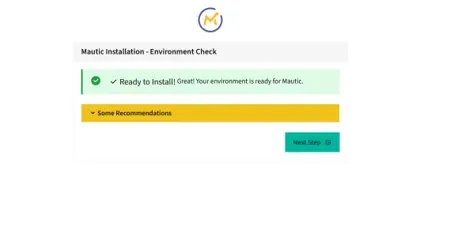
Mautic displays an environment check confirming whether the installation requirements are met. If the environment is ready, click Next Step to open the database setup screen.
On the database setup screen, select MySQL PDO as the driver. Enter db as the database host, 3306 as the port, and the database credentials configured in your .env file. With this guide's defaults, the database name and username are both mautic.
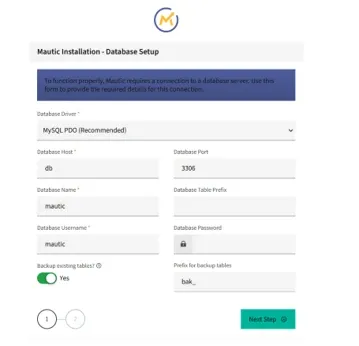
Click Next Step to continue. Follow the remaining prompts to create your administrator account and finish the installation. Once complete, sign in to access the Mautic dashboard.
Step 12: Configure Email Delivery and Scheduled Tasks
In the Mautic dashboard, open Settings → Configuration → Email Settings and locate Email DSN.
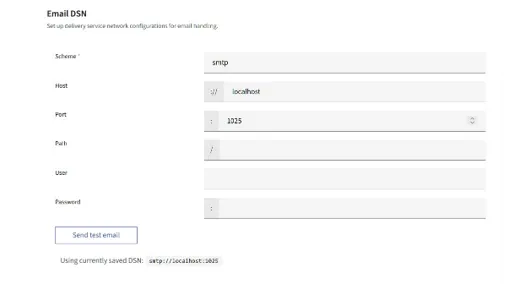
Enter the scheme, SMTP host, port, username, and password provided by your email service. Leave the path at its default unless your provider specifies otherwise.
Save the configuration and send a test email to verify delivery.
The Docker Compose configuration already includes mautic_cron and mautic_worker for scheduled tasks and background queue processing. No additional host-level cron job is needed for this setup.
Conclusion
You have now installed Mautic with Docker on Ubuntu 26.04, configured MariaDB, and secured access with Nginx and HTTPS. With email delivery configured and the scheduled task and worker services in place, you can start setting up your campaigns, contacts, and marketing automation workflows in Mautic.
For more in-depth tutorials, visit the BaCloud blog, where you’ll find helpful guides.