

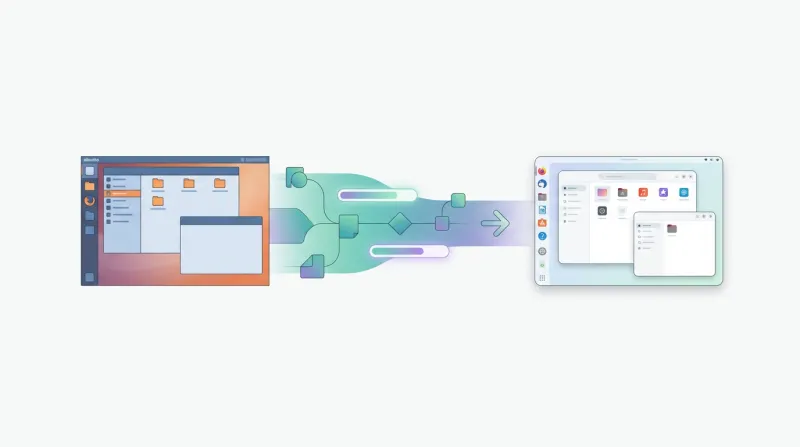
Ubuntu 26.04 LTS is the latest Long-Term Support (LTS) release in the Ubuntu family. It includes updated packages, security updates, and platform improvements for both server and desktop deployments.
In this guide, we'll show you how to upgrade Ubuntu 24.04 LTS to Ubuntu 26.04 LTS using the official release upgrade process. You'll also learn how to prepare your system, handle common upgrade prompts, verify the installation, and perform post-upgrade cleanup.
Prerequisites
Before upgrading, ensure your system meets the following requirements:
-
Ubuntu 24.04 LTS installed – This guide applies to systems currently running Ubuntu 24.04 LTS.
-
A user account with sudo privileges – Required to perform the upgrade.
-
A recent system or data backup – Recommended in case recovery is needed.
-
Sufficient free disk space – Required to download and install upgrade packages.
-
A stable internet connection – Required to download packages from Ubuntu repositories.
Step 1: Prepare the System for Upgrade
Before upgrading to Ubuntu 26.04 LTS, ensure your Ubuntu 24.04 LTS system is fully updated. This reduces the risk of package conflicts during the release upgrade.
Update the System
Refresh the local package index.
sudo apt updateNow, install all available package updates before starting the release upgrade.
sudo apt full-upgrade -yThis updates installed packages and applies any required dependency changes, ensuring the system is ready for the release upgrade.
Reboot the System (If Required)
If the update installed a new Linux kernel, reboot the system before starting the release upgrade.
sudo rebootAfter the system restarts, reconnect and continue with the next step.
Step 2: Run and Complete the Upgrade
With your system fully updated, you can begin the release upgrade to Ubuntu 26.04 LTS.
Start the Upgrade
Run the following command to start the upgrade:
sudo do-release-upgradeIf Ubuntu 26.04 LTS has been released but the standard LTS upgrade path has not yet been enabled by Canonical, use the following command instead:
sudo do-release-upgrade -dThe -d option allows the Release Upgrader to detect the latest development release. During the period immediately following an LTS release, Canonical temporarily uses this mechanism before enabling the standard LTS upgrade path. Once the standard upgrade path becomes available, use sudo do-release-upgrade instead.
SSH Upgrade Warning
If you are connected to the system over SSH, the Release Upgrader displays a warning before continuing.
A temporary SSH service is started on port 1022 so you can reconnect if the primary SSH service is restarted during the upgrade.
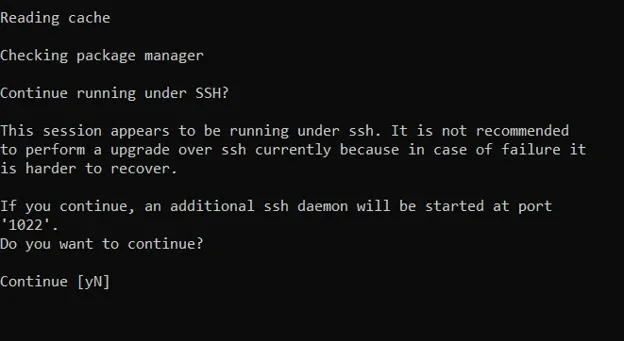
Type y to continue, and keep your SSH session open until the upgrade is complete.
Configuration File Prompts
If you have modified system configuration files, the Release Upgrader may ask whether you want to keep your existing version or install the package maintainer's version.
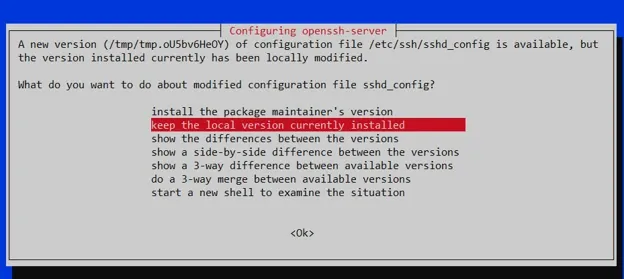
If you have not customized the file, you can usually install the package maintainer's version. If you have made custom changes, keep the existing version and review the differences after the upgrade.
Language and Keyboard Configuration
Some systems may display prompts related to language packs or keyboard configuration.
If your current settings are correct, keep the existing configuration. Only make changes if you want to update your language or keyboard settings.
Finish the Upgrade
The Release Upgrader downloads and installs the required packages, applies the necessary system changes, and removes obsolete packages where required. Depending on your system specifications and internet connection, this process may take some time.
When the upgrade is complete, you'll be prompted to restart the system. Type y to reboot.
After the system restarts, log back in and continue to the next step to verify the upgrade.
Step 3: Verify the Upgrade
After the system restarts, verify that the upgrade completed successfully and that your system is running Ubuntu 26.04 LTS.
Verify the Ubuntu Version
Confirm that the system is running Ubuntu 26.04 LTS.
Run:
cat /etc/os-release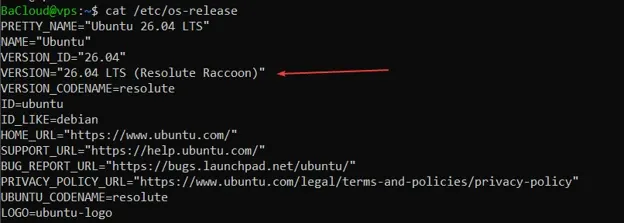
The output should indicate that the operating system is Ubuntu 26.04 LTS.
Check for Failed Services
Verify that no system services failed to start after the reboot.
Run:
sudo systemctl --failedIf the command returns 0 loaded units listed., no failed system services were detected.
Verify Installed Workloads
If your system hosts applications or services, verify that they are operating as expected. For example, check Docker containers, Kubernetes clusters, web servers, databases, and any other workloads running on the system.
If you identify any issues, review the relevant service logs before returning the system to production use.
Conclusion
You have successfully upgraded your system from Ubuntu 24.04 LTS to Ubuntu 26.04 LTS. By preparing the system, completing the release upgrade, and verifying that your applications and services are operating correctly, you can take advantage of the latest features, hardware support, security updates, and performance improvements available in Ubuntu 26.04 LTS.
For more in-depth tutorials, visit the BaCloud blog, where you’ll find helpful guides.