


SQL Server Express 2025 brings a significant change: the database size limit has increased from 10 GB to 50 GB. This makes the 2025 version a great choice if you want to install it for a new project or upgrade from an older SQL Express instance.
In this guide, we’ll walk you through installing SQL Server Express 2025 and upgrading from SQL Server Express 2022 to ensure a smooth, reliable setup.
What SQL Server Express Is (and When to Use It)
SQL Server Express is Microsoft’s free and lightweight edition of the SQL Server database engine. It includes the same core engine as Standard and Enterprise, but with limits on database size, CPU, and memory.
It’s an excellent choice for:
-
Development and local environments
-
DevOps testing and staging environments
-
Lightweight production systems
-
Small web or desktop apps
Since Express is free and easy to deploy, it’s widely used for prototypes, training setups, and even small-scale production workloads.
Choose Bacloud NVMe-powered VPS servers, delivering fast I/O performance, low latency, and reliable resources perfectly suited for SQL Express databases and Windows-based workloads.
What’s New in SQL Server Express 2025
SQL Server Express 2025 increases the maximum database size from 10 GB to 50 GB and includes updated security defaults and engine enhancements. These improvements make it better suited to modern workloads and a straightforward upgrade from SQL Server Express 2022.
With these basics out of the way, let’s begin the installation.
Prerequisites
Before installing SQL Server Express 2025 (or upgrading from 2022), make sure you have:
-
A supported Windows version (Win 10/11 or Windows Server 2019/2022)
-
Admin privileges on the machine
-
A stable internet connection to download the installer
-
(Recommended) Backups if upgrading from SQL Express 2022
Optional tools:
-
SQL Server Management Studio (SSMS)
Download SQL Server Express 2025
To download SQL Server Express 2025, go to the official Microsoft SQL Server downloads page. Under the Top downloads section, locate SQL Server 2025 Express and select Download now. This will download the small bootstrap installer (typically named SQL2025-SSEI-Expr.exe).
Install SQL Server Express 2025
Now that you have the installer, it’s time to set up SQL Server Express 2025.
For this guide, we will use Custom Install, because it provides full control over instance configuration, authentication mode, and network settings.
Installer Options
When the setup launcher opens, you’ll see three options:
-
Basic — quick installation with default settings.
-
Custom — opens the full Installation Center, allowing you to configure the instance, features, and authentication mode.
-
Download Media — creates an ISO or CAB package for offline or repeated deployments.
Click Custom
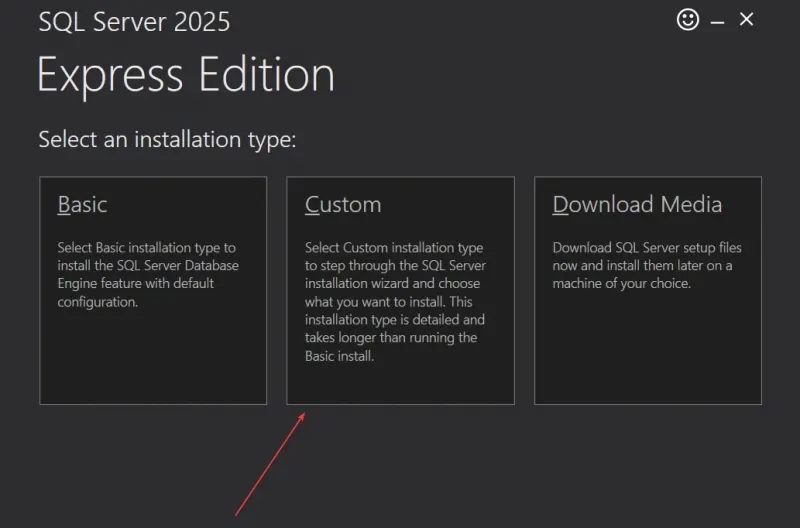
This opens the SQL Server Installation Center, where you can continue with a full, configurable installation.
-
Begin a New Installation (Custom)
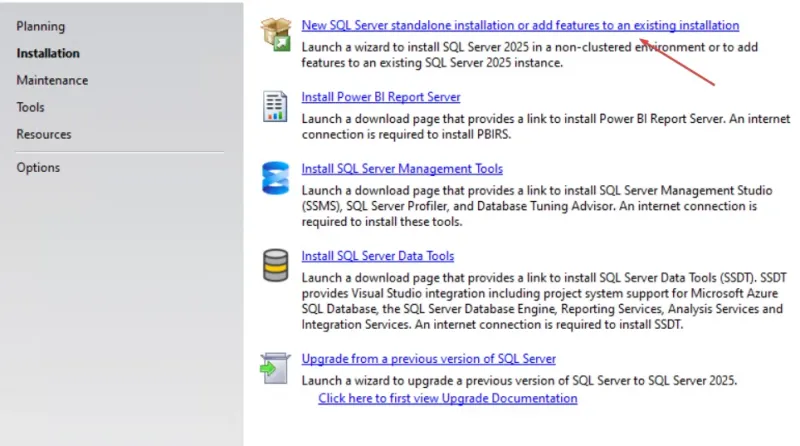
Inside the Installation Center:
-
Select New SQL Server stand-alone installation
-
Click ‘Next’ on the setup wizard.
The first few wizard screens (License Terms, rule checks, Microsoft Update prompts) require no input. Continue through them until you reach the Instance Configuration page — this is where the meaningful setup options begin.
-
Instance Configuration
The Instance Configuration page is where you define how SQL Server identifies itself on your machine. For this, we will use the Default Instance.
-
When you choose Default Instance, SQL Server automatically sets the Instance ID to MSSQLSERVER. This is the system’s reserved identifier for the default instance.
-
Using a default instance keeps local development simpler and avoids extra steps in connection strings.
Named instances (e.g., custom names like DEVSQL, TESTSQL) are only needed when running multiple SQL Server installations on the same machine, which we are not doing here.
So select “Default Instance” and continue.
-
Service Configuration
On the Server Configuration page, SQL Server sets up its core services:
-
SQL Server Database Engine → runs under the default service account (recommended for most environments)
-
SQL Server Agent → typically disabled in Express Edition, as Express does not include SQL Agent by default
Optionally, you can change service accounts if your organization requires dedicated SQL Server service accounts. For most development and small-scale deployments, the defaults are sufficient.
-
Authentication Mode
On the Database Engine Configuration page, SQL Server lets you choose how logins are handled.
For this guide, we will use:
-
Windows Authentication (Recommended) —This uses your Windows or domain credentials. Ideal for local development and single-machine setups.
Other option:
-
Mixed Mode (SQL Server + Windows Authentication) — This allows both Windows accounts and SQL Server accounts to log in. Required by some applications.
For this installation, select Windows Authentication and click Next.
-
Installation Complete
After confirming the previous page, the installer begins configuring SQL Server.
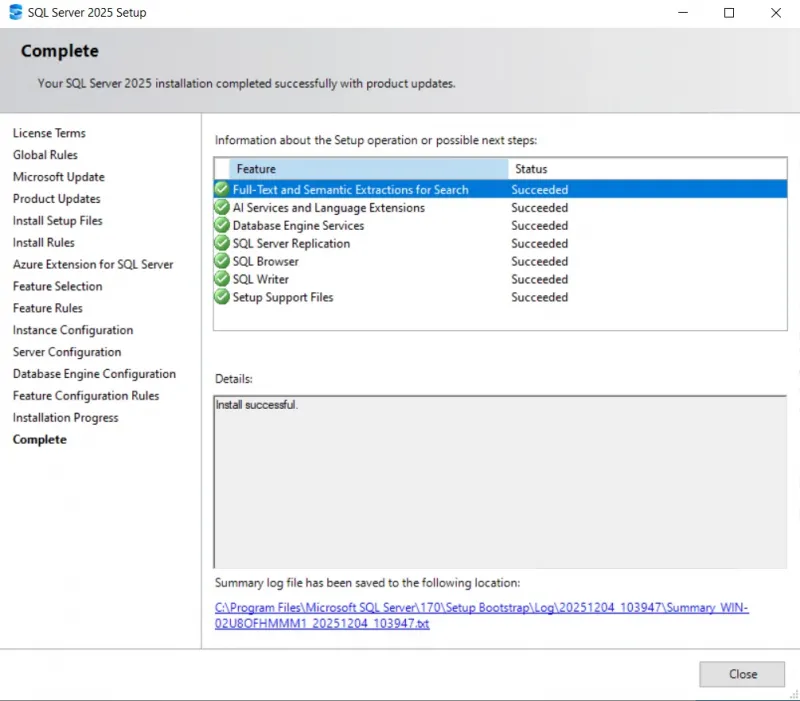
Once finished, you will see the “Installation Completed Successfully” screen, as shown below. This means SQL Server is now fully installed.
Install SQL Server Management Studio (SSMS)
SQL Server Express does not include a management tool, so you’ll need to install SQL Server Management Studio (SSMS) separately.
1. Download SSMS
Go to the official Microsoft download page and download the latest SSMS installer.
2. Run the Installer
Launch the setup and click Install. (Some systems may prompt for a restart after installation — restart if requested.)
3. Connect to Your SQL Server Instance
After installation or reboot, open SSMS.
In the Connect to Server window:
-
You will see the Connection Properties tab at the bottom. Enable the Trust server certificate. This prevents the SSL certificate warning that appears with default local SQL Server installs.
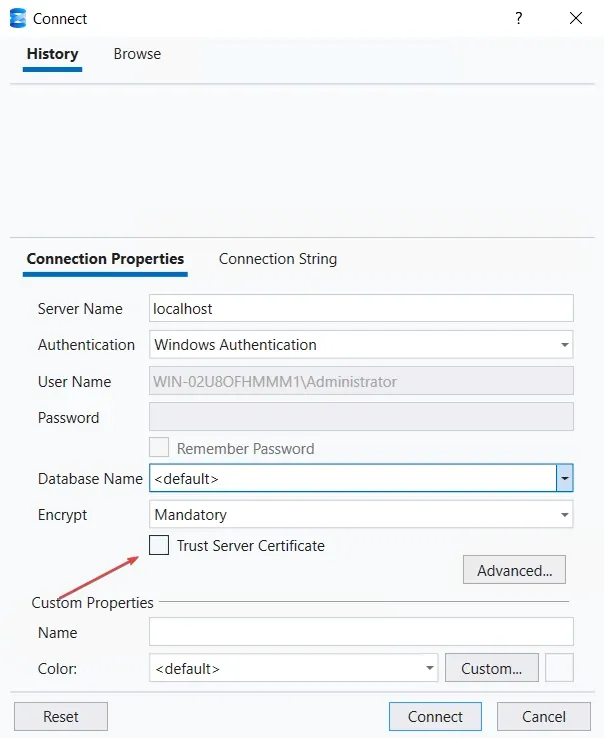
Then, enter:
Server Name: localhost (Because we installed the Default Instance, no instance name is required.)
Click Connect.
After connecting, SSMS should open normally. You will see Object Explorer on the left, showing your SQL Server Express instance and the default system databases.
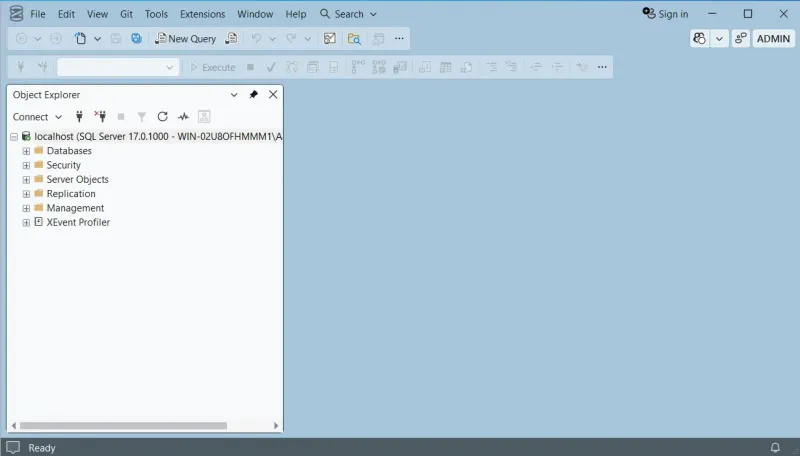
At this point, SQL Server Express 2025 and SSMS are fully installed and ready for use.
Verify Version (Optional)
To confirm you are running SQL Server 2025 Express, open a New Query and run:
|
SELECT @@VERSION; |
You should see output indicating Microsoft SQL Server 2025 (Express Edition).
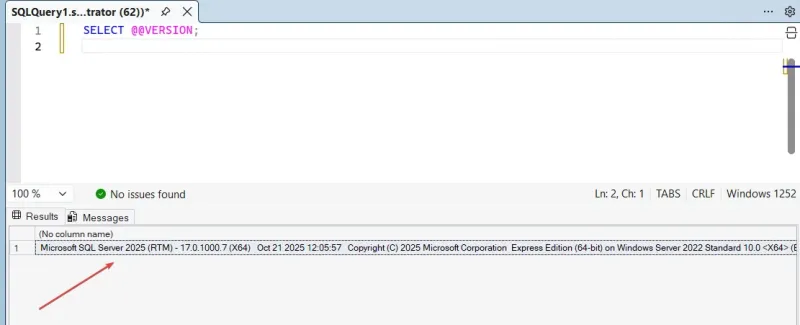
If you’re upgrading from a previous version (such as SQL Server Express 2022), continue to the next section for the in-place upgrade process.
Upgrade SQL Server Express 2022 to 2025
Upgrading from SQL Server Express 2022 to 2025 is straightforward because Microsoft supports in-place upgrades across Express editions.
Before you begin, a few checks help ensure the process completes without issues.
-
Pre-Upgrade Checklist
Before running the installer, confirm the following:
-
Back up your databases — either full backups or copies of the MDF/LDF files.
-
Identify the instance name — for example:
-
Default instance: SQLEXPRESS
-
Named instance: whatever was set during installation.
-
-
Edition check — You can upgrade SQL Server Express 2022 directly to SQL Server Express 2025. Switching to a different edition (e.g., Standard or Enterprise) is not supported during this upgrade.
These checks help avoid configuration conflicts and allow quick recovery if needed.
-
Perform the In-Place Upgrade
Now proceed with the upgrade:
-
Run the SQL Server 2025 setup file (the same bootstrapper used for fresh installations).
-
In the Installation Center, select:
Upgrade from a previous version of SQL Server.
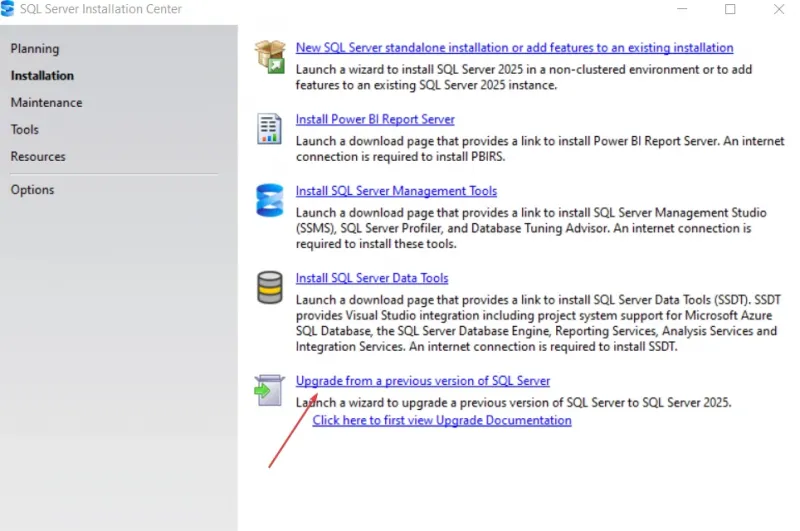
-
Choose the SQL Server 2022 Express instance (it usually appears as MSSQL16.<InstanceName>).
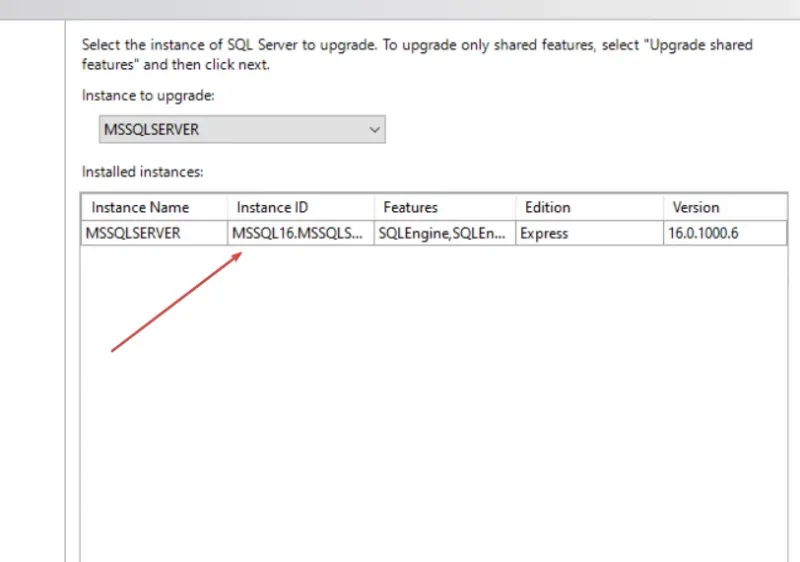
-
The installer will run compatibility checks for features and configuration.
-
If prompted for Full-Text Upgrade Options, select:
Import — the recommended choice for typical environments. (This preserves your existing full-text catalogs.)
-
Start the upgrade and wait for the process to complete.
-
After installation, restart SQL Server services to apply all changes.
The upgrade preserves your databases, logins, and configuration.
Post-Installation Configuration
After installing or upgrading SQL Server Express 2025, a few configuration steps help ensure connectivity, security, and compatibility with applications.
-
Configure Network Protocols (SQL Server Configuration Manager)
Open SQL Server Configuration Manager and review the protocols for your SQL instance:
-
Enable TCP/IP. Required for remote connections, applications, and most server-side integrations.
-
Enable Named Pipes (optional). Enable only if a legacy application specifically requires it.
Disabling unused protocols reduces the attack surface.
-
SQL Browser Service (Optional)
Enable SQL Server Browser only if:
-
You are using a named instance, or
-
Your instance is using dynamic ports.
SQL Browser helps clients discover the correct port, but it’s unnecessary for a default instance with static port configuration.
-
Configure Firewall Rules
If SQL Server needs to accept external connections, add firewall rules on the server:
-
TCP 1433 — required for the default SQL Server port
-
UDP 1434 — required only if SQL Browser is enabled
To minimize the attack surface, expose only the ports you need.
Conclusion
SQL Server Express 2025 and SSMS are now installed, configured, and ready for use. You’ve completed the installation, verified the version, and applied key post-installation settings to ensure connectivity and security.
With this setup in place, you can immediately start working with databases, testing queries, or integrating SQL Server into your workflows. For those upgrading from SQL Server Express 2022, the upgrade path preserves your existing data and configurations, allowing you to proceed with confidence.
For more in-depth tutorials, visit the BaCloud blog, where you’ll find helpful guides.