

 Running a publishing platform on your own server gives you full control over how your content is managed, delivered, and maintained. While platforms like WordPress are widely used for general-purpose websites, many developers and publishers prefer lighter publishing-focused platforms that are easier to manage and optimize.
Ghost is a modern CMS built specifically for blogging and publishing, with a focus on performance, simplicity, and a clean writing experience.
In this guide, we’ll install Ghost CMS on Ubuntu 24.04 and configure it for a secure and production-ready deployment.
Prerequisites
Before you begin, ensure you have the following:
-
A non-root user with sudo privileges
-
A registered domain or subdomain pointed to your server IP
-
Open firewall ports for:
-
22 (SSH)
-
80 (HTTP)
-
443 (HTTPS)
-
Step 1. Update the Server
Before installing Ghost CMS, update the server to ensure all packages are up to date with the latest security patches.
Run the following command:
sudo apt update && sudo apt upgrade -yDepending on the number of available updates, this process may take a few minutes to complete.
Step 2. Create a Dedicated Ghost User
For better security and system organization, it’s recommended to run Ghost CMS under its own dedicated user account rather than the root account.
Start by creating a new user called ghost:
sudo adduser ghostThis command creates a separate system user and home directory for managing Ghost-related files and processes.
Next, grant the user sudo privileges so they can execute administrative commands when needed:
sudo usermod -aG sudo ghostFinally, switch to the newly created user so all upcoming installation steps are performed in the correct environment:
su - ghostFrom this point forward, Ghost will be installed and managed using this dedicated user account, keeping the system more secure and organized.
Step 3. Install Required Dependencies
Install the core services Ghost depends on: a web server and a database system.
Install Nginx
Nginx will act as the web server, handling incoming requests and serving your Ghost site to visitors.
Run the following command to install it:
sudo apt install nginx -yThis installs and starts Nginx so it can begin handling HTTP traffic on your server.
Install MySQL Server
Ghost uses a database to store posts, users, and site settings. For production deployments, Ghost officially recommends MySQL 8.
Install the MySQL server package using:
sudo apt install mysql-server -yThis installs the database server that Ghost will later connect to during configuration.
After installation, verify the installed version:
mysql --versionYou should see an output similar to this:

Step 4. Configure Firewall Rules
Before exposing your Ghost installation to the internet, you need to configure the firewall to allow only the necessary traffic and secure the server.
Start by allowing SSH access so you don’t get locked out of the server:
sudo ufw allow 22/tcpThis ensures remote connections over SSH (port 22) remain accessible.
Next, allow web traffic for Nginx, which handles both HTTP and HTTPS requests:
sudo ufw allow 'Nginx Full'This opens ports 80 and 443, allowing your site to be accessed securely in the browser.
Now enable the Uncomplicated Firewall (UFW) to activate these rules:
sudo ufw enableWhen prompted, confirm the activation. This turns on the firewall with the rules you just configured.
Finally, verify that everything is set correctly:
sudo ufw statusThis will display the active rules. Verify that the firewall allows:
-
SSH (22)
-
HTTP (80)
-
HTTPS (443)
Step 5. Install Required Utility Packages
Next, install a few utility packages required during the Ghost setup process.
The curl package is used to download external installation scripts, including the NodeSource repository setup script used for installing Node.js. The unzip package is useful for handling compressed files, such as Ghost themes and backups.
Install both packages with the following command:
sudo apt install curl unzip -yOnce the installation is complete, you can proceed with installing Node.js for Ghost CMS.
Step 6. Install Node.js
Ghost CMS runs on Node.js, so you need to install a supported Node.js LTS version before installing Ghost.
At the time of writing, Node.js 22 LTS is required for Ghost production deployments (Ghost v6+).
Start by adding the NodeSource repository for Node.js 22:
curl -fsSL https://deb.nodesource.com/setup_22.x | sudo -E bash -Next, install Node.js from the newly added repository:
sudo apt install nodejs -yAfter the installation is complete, verify the installed Node.js version:
node -vYou should see an output similar to:

Then, verify the installed npm version:
npm -vExpected output:

If both commands return version numbers, Node.js and npm were installed successfully.
Step 7. Secure MySQL and Create the Ghost Database
Secure the database server and create a dedicated database for Ghost CMS.
Start by running the MySQL security script:
sudo mysql_secure_installationThis is an interactive setup that hardens your MySQL installation by removing insecure defaults such as anonymous users and test databases.
When prompted, use the following recommended options:
-
Remove anonymous users: Y
-
Disallow root login remotely: Y
-
Remove test database: Y
-
Reload privilege tables: Y
After completing the security setup, access the MySQL shell:
sudo mysqlNext, create a database and a database user for Ghost:
CREATE DATABASE ghost;Create a dedicated MySQL user and replace your_secure_password with a strong password:
CREATE USER 'ghostuser'@'localhost' IDENTIFIED BY 'your_secure_password';Grant the user full privileges on the Ghost database:
GRANT ALL PRIVILEGES ON ghost.* TO 'ghostuser'@'localhost';Apply the privilege changes:
FLUSH PRIVILEGES;Finally, exit the MySQL shell:
EXIT;These database credentials will be required later during the Ghost installation process.
Step 8. Install Ghost CLI
Ghost CLI is the official command-line tool for installing, configuring, and managing Ghost CMS instances on the server.
Install Ghost CLI globally with npm by running:
sudo npm install ghost-cli@latest -gThe -g flag installs the package globally, making the ghost command available system-wide.
After the installation completes, verify that Ghost CLI was installed successfully:
ghost versionYou should see an output similar to:

If the command returns a version number like in the image above, Ghost CLI is ready to use for the installation process.
Step 9. Create the Ghost Installation Directory
Next, create the directory where Ghost CMS will be installed and managed.
Start by creating the installation directory inside /var/www:
sudo mkdir -p /var/www/ghostThis location is commonly used for hosting web applications and site files on Linux servers.
Set the ownership of the directory to the ghost user created earlier:
sudo chown ghost:ghost /var/www/ghostThis ensures the Ghost user has the proper permissions to install and manage the application files.
Next, update the directory permissions:
sudo chmod 775 /var/www/ghostThese permissions allow the owner and group to read, write, and execute files within the directory while still maintaining controlled access.
Prepare Node.js cache permissions
Before installing Ghost, ensure the Node.js cache directory exists and has the correct ownership. This prevents permission errors during installation.
Create the cache directory:
sudo mkdir -p /home/ghost/.cache Then set ownership to the Ghost user:
sudo chown -R ghost:ghost /home/ghost/.cache Finally, navigate to the Ghost installation directory:
cd /var/www/ghostThe Ghost installation will be performed from this directory in the next step.
Step 10. Install Ghost CMS
With the server environment fully configured, you can now install Ghost CMS using Ghost CLI.
From the /var/www/ghost directory, run the following command:
ghost installGhost CLI will begin the installation process and guide you through several interactive configuration prompts.
During the setup, you will be asked to enter your blog URL. Use the fully qualified domain name configured earlier, for example:
https://blog.example.comGhost CLI will then prompt you for the MySQL connection details created earlier in the tutorial.
Enter the following values when prompted:
-
MySQL hostname: localhost
-
MySQL username: ghostuser
-
Database name: ghost
-
Database password: your MySQL password
Next, Ghost CLI will ask whether you want to configure Nginx automatically. Type Y to allow the installer to generate the recommended Nginx configuration for your site.
You will also be prompted to configure SSL using Let’s Encrypt. If your domain DNS records are correctly pointed to the server, type Y to generate and install the SSL certificate.
Finally, Ghost CLI will ask whether it should configure a systemd service for Ghost. Accept this option so Ghost can start automatically during server boot and be managed as a system service.
Once the installation completes successfully, your Ghost site will be running on Nginx, with HTTPS and systemd integration configured automatically.
Step 11. Access the Ghost Admin Dashboard
After the installation is complete, you can access the Ghost admin dashboard from your web browser.
Open the following URL, replacing yourdomain.com with your actual domain name:
https://yourdomain.com/ghostThis will load the Ghost setup page, where you can create the administrator account for your site.
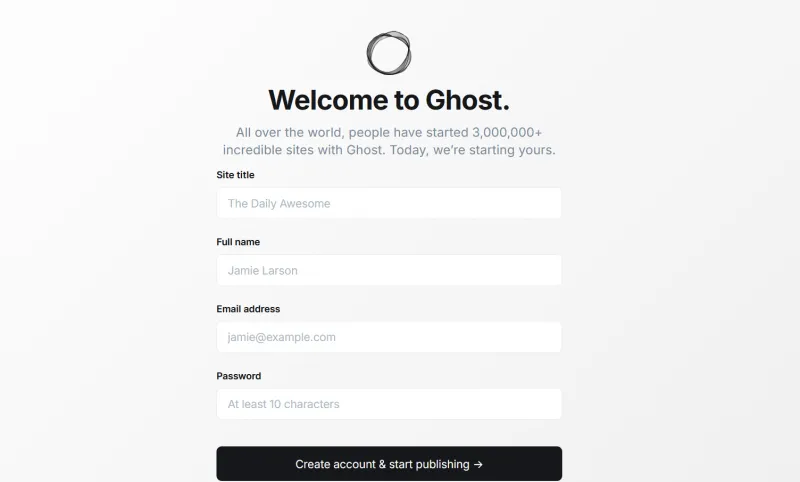
During the setup process, you will be prompted to configure:
-
Site title
-
Administrator email address
-
Account password
Once the account setup is complete, you will be redirected to the Ghost admin dashboard, where you can begin creating content, installing themes, and managing your site.
Step 12. Manage the Ghost Service
After the installation is complete, you can manage the Ghost application directly from the command line using the Ghost CLI.
To check whether the Ghost service is running correctly, use:
ghost statusThis command displays the current status of your Ghost installation, including whether the application is online, the running version, and the associated system service information.
If you make configuration changes, update themes, or need to recover from an issue, you can restart the Ghost service with:
ghost restartTo temporarily stop the Ghost application, run:
ghost stopWhen you are ready to bring the site back online, start the service again using:
ghost startThese management commands should be executed from within the Ghost installation directory:
/var/www/ghostUsing the Ghost CLI makes it easier to manage the application without manually interacting with systemd or Node.js processes.
Conclusion
You have successfully installed and configured Ghost CMS on Ubuntu with Nginx, MySQL, Node.js, and HTTPS secured through Let’s Encrypt.
Your deployment now runs in production mode, using systemd service management and automatic SSL support via the Ghost CLI.
To maintain a stable installation, keep Ubuntu packages, Ghost, and Node.js up to date, and monitor your server's resources over time.
For future upgrades, run:
ghost updatefrom the Ghost installation directory to safely install the latest compatible Ghost release.
Your Ghost instance is now ready for production use.
If you want to explore another self-hosted publishing platform, you can also follow our guide on how to install WordPress on a VPS.