


In April 2026, Microsoft introduced new protections for Remote Desktop (.rdp) files in Windows 10/11 and Server to combat phishing. From that update onward, opening any RDP file (for example, double-clicking a saved .rdp session file) will trigger one-time and repeated security prompts. The first time an RDP file is opened, Windows shows an educational dialog explaining the risks. Subsequently, a Connection Security dialog appears, listing the remote address and any local resources (drives, clipboard, devices, etc.) that the connection would use. By default, all redirections are turned off (disabled) in this dialog, requiring the user to explicitly enable them if needed. Unsigned RDP files show a warning banner “Caution: Unknown remote connection” with the publisher “Unknown publisher,” while signed files show “Verify the publisher of this remote connection” and display the publisher’s name. These changes only affect RDP sessions launched via .rdp files, not manual hostname entry in MSTSC (the manual RDC client).
Many organizations viewed this as a “connection issue” because users must now acknowledge prompts or re-enable drive shares. However, it is expected behavior by design – Microsoft warns that attackers were abusing silent RDP files to steal data (notably the Russian APT29 “Midnight Blizzard” campaign). IT admins can mitigate the prompts temporarily (by a registry policy) and long-term by using signed RDP files or training users to trust known connections. A table below compares key options. Detailed guidance (with registry keys, Group Policy paths, commands, etc.) follows. A timeline of events and official references is included for context.
Background: RDP Files and the April 2026 Security Update
Remote Desktop Protocol (RDP) enables users to connect to remote Windows desktops or servers. An RDP file (*.rdp) is a shortcut containing connection settings: target address, login options, and resource redirections (local drives, clipboard, devices, etc.). Enterprises often distribute RDP files to simplify logins. However, attackers began weaponizing RDP files: a malicious .rdp file could silently connect a victim to a hostile server, automatically mapping local drives and devices, and exfiltrating data and credentials. The UK’s NCSC even reported this “RDP file spoofing” as a vulnerability (CVE‑2026‑26151).
In response, Microsoft’s April 2026 cumulative security updates (released April 14, 2026) added stronger RDP-file warnings. These updates – KB5082200 on Windows 10, KB5082142 on Server, KB5083769/KB5082052 on Windows 11, etc. – “improve protection against phishing attacks that use Remote Desktop (.rdp) files”. The support notes and blogs (BleepingComputer, HelpNetSecurity) explain that from this point, “all requested connection settings” are shown before connecting, with each setting off by default, plus a one-time educational prompt. Microsoft’s documentation (“Understanding security warnings when opening RDP files”) summarizes these changes and how to handle them.
How the New Security Warnings Work
After the update, opening an RDP file behaves differently:
-
First launch prompt (educational): The very first time any user opens an RDP file on a device, Windows shows a one-time dialog explaining RDP-file risks (phishing, resource sharing). The user must click “OK” or similar to acknowledge. (Per-user setting: once allowed, this prompt won’t reappear for that user).
-
Connection security dialog: Every subsequent launch of any RDP file shows a Security Warning dialog before connecting. This dialog lists the remote address (computer name/IP) and all the local resources the RDP file requests (e.g., drives, clipboard, camera) – all with checkboxes that are cleared by default. The user must manually enable any needed redirections. This extra step can interrupt seamless logins (e.g., drive mappings no longer auto-connect).
- Unsigned .rdp files: If the file is not digitally signed, the dialog’s title is “Caution: Unknown remote connection,” and the Publisher field shows “Unknown publisher”. This is a strong warning that the file origin is unverified.
- Signed .rdp files: If the RDP file carries a valid code-signature from a trusted CA, Windows displays the publisher’s name and a yellow “Verify the publisher of this remote connection” banner. (Signing confirms origin but doesn’t guarantee safety; admins should still verify trust).
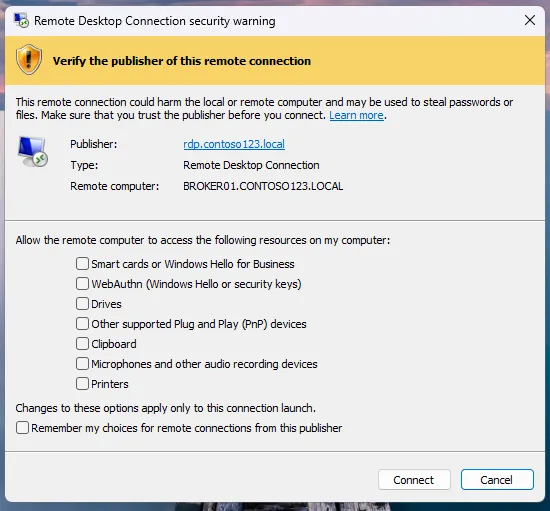
Figure: Example of the new security warning for an unsigned RDP file. The dialog shows “Caution: Unknown remote connection” with all local resources disabled by default. Users must click “Connect” (after reviewing) to proceed. Source: Microsoft
Because all redirections are disabled by default, this can “break” connections that relied on automatic resource sharing. For example, if an RDP file was set to map local drives, users will now see the drive mapping checkbox unchecked. Failure to re-check it means the remote session won’t have those drives, which some users report as “RDP not working.” In reality, the session connects (you’ll still get the remote desktop), but expected resources won’t be available until explicitly enabled.
Importantly, these prompts only occur when launching via an .rdp file. Manual RDP connections (typing the server name in Remote Desktop Connection) are unaffected. The alert is triggered by the .rdp file handler. After install:
- If you double-click an RDP file: You will see the one-time explanation (first time) and then the security dialog each time.
- If you open MSTSC.exe and type a name: No change – the usual login box appears without new warnings.
This distinction is crucial: users who connect by clicking saved files will see the alerts; others using the built-in client without a file will not.
Affected Environments and User Impact
These warnings apply to all Windows editions that can run the Remote Desktop Connection client. That includes Windows 10 (Home/Pro/LTSB/LTSC), Windows 11 (all versions), and server OSes (2012 R2, 2016, 2019, 2022, 2025, etc.). Any device receiving the April 2026 updates will get the new behavior.
-
Enterprise vs Home: Both business and home users who install the April 2026 patches see this change. However, enterprises often distribute .rdp files (e.g., via RDP web portals or emailed shortcuts), so business users are more likely to encounter the dialog. Home users rarely use RDP files and may be less affected.
-
Client vs Server: The feature is in the Remote Desktop client application (mstsc). Thus, clients (workstations and servers used to initiate RDP) show the dialog. A Windows host that is being connected to is not changed by this update (unless it also launches RDP files itself). The “server” role is unaffected; it’s the device you launch RDP from that now has the warnings.
-
Groups of users: In corporate environments, admins may push GPOs or scripts to disable or work around the prompt temporarily (see below). Home users or small shops without IT support might simply see the warning and wonder whether RDP has broken. Early adopter reports (forums, Reddit) show many users “freaking out” when the dialog appears unexpectedly. Communication is key to avoiding confusion.
Mitigation and Troubleshooting
Temporary Bypass (Registry/Policy)
If the new dialogs interfere with critical operations, administrators can temporarily revert to the old behavior. Microsoft provides a registry-based override (also deployable via Group Policy):
-
Registry fix: On the RDP client machine, set
arduinoHKLM\Software\Policies\Microsoft\Windows NT\Terminal Services\Client\RedirectionWarningDialogVersion = 1 (DWORD)For example, run as admin:
powershellreg add "HKLM\Software\Policies\Microsoft\Windows NT\Terminal Services\Client" /v RedirectionWarningDialogVersion /t REG_DWORD /d 1 /fThis forces the Remote Desktop app to use the legacy security dialog (essentially disabling the new prompts). (Note: This policy only applies to the device with the registry change, and Microsoft warns that future updates might remove support for this setting.)
-
Group Policy: There is no dedicated GPO GUI setting as of April 2026, but the above registry path is under the
Policiesbranch, so it can be pushed via a Computer Configuration policy or startup script in Active Directory.
This workaround should be used sparingly (e.g. while training users). It sacrifices the anti-phishing protection, so it’s not recommended as a permanent fix. Microsoft explicitly advises to “transition your environment to work with the new security dialog” eventually.
Signing and Trusting RDP Files
For a more secure solution, consider digitally signing RDP files and establishing trust:
- Sign RDP files: Use a code-signing certificate (from your internal CA or vendor) to sign the
.rdpfiles. This removes the “Unknown publisher” label. A signed file will show your organization’s name instead. - Trust the publisher: Ensure the signing certificate is in the Trusted Publishers store on client machines. If an RDP file is signed by a trusted publisher, the dialog still appears but users see the verified name instead of “Unknown”. (Administrators can deploy the signer certificate via AD Group Policy to the Trusted Root/Trusted Publishers as needed.)
- Benefits: A signed RDP file helps users distinguish legitimate connections. It doesn’t bypass the dialog, but it reduces user confusion.
- Drawbacks: Requires a PKI infrastructure and discipline to sign each distributed RDP file. If an attacker obtains a signing cert, they could misuse it (so protect keys carefully).
Enforce Connection Without .rdp Files
- Use RD Web or Management tools: If possible, switch to solutions where users don’t manually open
.rdpfiles. For example, publish desktops via Remote Desktop Web Access (RD Web) or use Windows Admin Center / Azure Virtual Desktop, which may handle the prompt differently. (Note: Azure Virtual Desktop & Windows 365 publish signed RDP files, so in theory they shouldn’t trigger the dialog.) - Train users to connect by name: Encourage users to launch Remote Desktop and type the server name (or choose from saved connections within the app), rather than double-clicking files. That avoids the new warning altogether.
Server/Certificate Settings
- RDP Host certificate: Ensure the RDP host has a valid SSL certificate (for example, via Group Policy “Require server authentication”). This addresses other RDP issues (like CredSSP) but does not affect the client’s file warning.
- Network Level Authentication (NLA): Continue enforcing NLA on the server (it doesn’t change because of this update). However, beware that disabling NLA (to fix separate connection problems) is not needed for these warnings. The new prompts are unrelated to NLA or encryption; they are purely client-side UI changes.
Other Workarounds
- Suppress first prompt (HKCU): Some admins discovered that you can set
HKCU\Software\Microsoft\Terminal Server\Client\RdpLaunchConsentAccepted = 1 (DWORD)
to skip the educational first-time prompt. This is not documented by Microsoft, but was reported in forums. Use with caution – it only affects the per-user consent dialog, not the recurring security warning. - Legacy RDP client: In theory, using an older RDP client (pre-update) would avoid the dialog, but such a client is unsupported and unpatched. Not recommended.
FAQ (Sample) and Admin Communication
Q: I’m seeing a scary “Unknown remote connection” warning. Is it malware?
A: No. This is an intentional new security prompt introduced by the April 2026 Windows update. It only appears when you open a Remote Desktop shortcut (.rdp file). If you trust the remote PC address, you can click Connect. The purpose is to prevent silent, malicious connections.
Q: Why can’t I see my drives/smart card on the remote PC anymore?
A: The new dialog disables all local resource redirections by default. After clicking Connect, go to the Local Resources tab and re-enable any needed items (drives, clipboard, etc.), or re-open the .rdp file properties and allow them.
Q: I usually double-click an RDP file I got via email – now I see a warning. Should I do anything?
A: Yes, review the warning. If the file came from a trusted source, click Connect. (If it was unexpected, double-check with the sender.) You will only see the one-time prompt once per device; then only the connection dialog.
Conclusion
The April 2026 update marks a clear shift in Microsoft's approach to Remote Desktop security. What may initially appear as connection issues are, in reality, intentional safeguards intended to reduce the risk of misuse via RDP files. Organizations relying on .rdp workflows should review their processes, ensure users understand the new prompts, and consider more controlled or trusted deployment methods. Rather than disabling these changes, adapting to them will provide a more secure and resilient remote access environment going forward.