

WordPress 7.0 (code-named Armstrong), released May 20, 2026, is a major update that modernizes the admin UI, expands the block editor, and – for the first time – builds in native AI support. It introduces a provider-agnostic AI Client with a central “Connectors” hub, plus an optional AI plugin for generating text and images. Other highlights include a refreshed dashboard (new color scheme, smooth transitions, a Cmd/Ctrl+K command palette), new and enhanced blocks (Breadcrumbs, Icons, Heading, Gallery slideshow, video covers, etc.), block-level custom CSS and responsive visibility controls, a universal font manager, and new developer APIs (including PHP-only blocks). Performance and accessibility have also been improved under the hood. Overall, WordPress 7.0 sets a foundation for AI-powered workflows while giving all users a more powerful, modern editing experience.
What’s New in WordPress 7.0?
AI Integration (WP AI Client & Connectors)
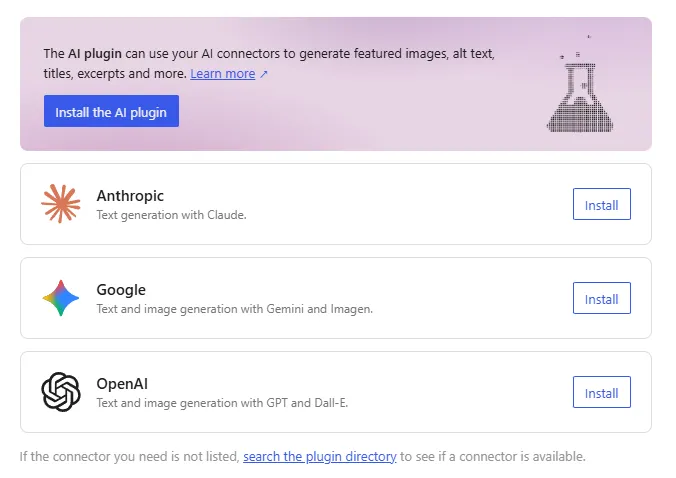
WordPress 7.0 adds a core AI client, allowing the CMS to communicate with external AI models without relying on separate plugins. In the dashboard under Settings → AI Connectors, you’ll find built-in connectors for Anthropic (Claude), Google (Gemini), and OpenAI. Once you enter your API keys, WordPress can route prompts to the model of your choice. The new Connectors API provides a standard interface (with functions such as wp_register_connector(), wp_get_connector(), wp_get_connectors(), etc.) so that any plugin or theme can integrate third-party services consistently.
The core AI system powers new editor tools (in an optional “AI Experiments” plugin) that can generate titles, excerpts, summaries, alt text, or even images from prompts. For example, you might highlight a paragraph and click “Generate excerpt,” or click the Image block’s AI button to create a stock image. All of this data goes out to the cloud models (your connected service) – WordPress itself does not host AI models. You remain in control of privacy by choosing which provider to connect and by using the wp_ai_client_prevent_prompt filter if you want to block certain AI calls (e.g., disable AI for non-admin users).
Refreshed Admin Dashboard
The WordPress admin gets a visual refresh: a cleaner default color scheme, updated buttons and form styles, and smooth fade transitions between screens. A new Command Palette (press Ctrl+K or ⌘K) provides a quick-search box for any admin setting, post, page, or help page – useful for fast navigation. You’ll also find a dedicated Font Library page to browse, install, and manage fonts in any theme. Altogether, these changes give the dashboard a more modern look and feel and make it easier to find tools without having to jump around.
Expanded Block Editor & Design Tools
WordPress 7.0 adds several new blocks and editor features to give site owners more design control:
- New Blocks: Breadcrumbs Block (to automatically display navigation links), Icon Block (choose from a built-in icon library), and an enhanced Heading Block (with more styling options). The Gallery Block now supports lightbox slideshows, and the Cover Block supports video backgrounds.
- Patterns as Blocks: You can drop a pattern onto a page and treat it like a single block, making it easier to edit. A single click can “Edit pattern” to unwrap its inner blocks.
- Block Custom CSS: In the block inspector, you can now add inline CSS styles to an individual block (just like you could add a class before). This is great for quick, per-block tweaks without editing a theme stylesheet.
- Responsive Visibility: In the block toolbar or inspector, you’ll find Show/Hide options so you can choose which blocks appear on Desktop, Tablet, or Mobile view. (For example, hide a large desktop-only image on mobile to declutter.)
These features let you build richer layouts without extra plugins. For example, you can design your navigation overlay (see Menu Overlay patterns) with multiple columns, large fonts, icons, etc., right in the block editor.
Visual Revisions and History
A long-requested improvement: the Revision History is now visual. As you review an old version of a post or page, a timeline slider lets you scrub through revisions, and visual markers highlight which blocks changed when. This makes it much easier to spot and restore the exact version you want.
Other Notable Features
- Site Editor Enhancements: Full Site Editing (FSE) continues evolving. Nested patterns (e.g., template parts), improved template management, paragraph indent and multi-column support, defined aspect ratios, and dimension presets (common width/height/spacing) make building with block themes smoother (see make.wordpress.org or [46] for details).
- Accessibility: Many a11y fixes are included – better color contrast in the new admin scheme, improved editor navigation (e.g., for screen readers or voice control), and enhanced media interface. WordPress is committed to WCAG standards, and 7.0 continues to polish wherever needed.
- Performance: Under the hood, image loading is smarter (hidden images in overlays won’t block critical loads), block CSS is loaded on-demand for faster initial render, and JavaScript modules can now depend on each other to reduce render-blocking. These tweaks aim to speed up editing and improve page load times.
New Developer APIs and Functions
For plugin and theme authors, WordPress 7.0 adds several new tools and APIs:
- Connectors API (PHP): Functions like
wp_register_connector(),wp_get_connector(),wp_get_connectors(), andwp_is_connector_registered()let you define or query external-service connectors. This standardizes how plugins connect to third-party APIs (not just AI – future use cases might include payment gateways or CRM). - WP AI Client (PHP): A new function, wp_ai_client_prompt(), returns a WP_AI_Client_Prompt_Builder. This builder uses a fluent interface for generating AI content. For example:
It handles provider selection, sends the prompt, and returns text (orphpCopy
$text = wp_ai_client_prompt('Write a haiku about WordPress.') ->using_temperature(0.7) ->generate_text();WP_Erroron failure). You can also generate images with->generate_image(), or multimodal results with->generate_result(). The builder offers feature detection methods (is_supported_for_text_generation(), etc.) so you can show or hide the UI if a capability isn’t available. There’s also a filter, wp_ai_client_prevent_prompt, to block prompts under certain conditions. - Client-Side Abilities API (JS): A new JavaScript package
@wordpress/abilities(and@wordpress/core-abilities) lets blocks and plugins register abilities (like “go to settings”, “create post”, etc.) in a global store. This is the backbone for voice assistants or automation tools. For example, you canregisterAbility({...})use a name, label, callback, and even JSON schemas for input/output. The editor then knows about these abilities and can trigger them. - PHP-Only Blocks: You can now register simple blocks entirely with PHP, without any JavaScript. Simply call
register_block_type()with the newsupports => ['autoRegister' => true]flag and arender_callback. WordPress will auto-generate the block’s editor UI from the PHP array (attributes and labels). This makes it easier to create basic dynamic blocks (especially in classic themes) without needing to learn React. - Author Link
titleAttr (SEO): A minor change removes thetitleattribute from the author link by default (no more “Visit Author’s website” tooltip) – functionsget_the_author_link()andget_the_author_posts_link()now accept a$use_title_attrparameter.
Developers should review the 7.0 Field Guide and Dev Notes for full details. In summary, 7.0’s expanded APIs make WordPress more extensible (especially for AI and headless scenarios) while still following familiar WP patterns.
AI Integration Details (User & Privacy Perspective)
WordPress 7.0’s AI features are opt-in. Nothing happens until you connect a provider in Settings → AI Connectors and activate the AI plugin. All AI work is done by external services (like OpenAI’s servers, Google Cloud’s Gemini, etc.) – WordPress simply sends your text to them and displays the result. You pay the provider’s usual costs (e.g., OpenAI tokens), not WordPress.
From a privacy standpoint, treat it like any cloud AI tool: user-entered text (or images you ask to generate) is sent to the chosen service. WordPress does not store your API keys in plain text (keys are masked in the UI, though not encrypted by default). Future updates may add key encryption. No AI calls are made if you haven’t explicitly added a key. You can also filter/block calls: the wp_ai_client_prevent_prompt hook lets admins disable AI for certain users or contexts (for example, disallow content generation for Editors or Authors).
Importantly, WordPress’s AI client supports multiple “modalities” (text, image, etc.) and can return combined results. Plugin developers can fetch full result objects (including metadata such as token usage and model info) for logging or billing purposes. In practice, for general site owners, you’ll just see simple “Generate Title” or “Suggest Alt Text” buttons in the editor once the AI plugin is active. Just click, and it fills in the content. You might configure styles or tweak the prompt later, but the core UI is pretty straightforward (and we include tips below).
Upgrade Considerations & Compatibility
System Requirements: WordPress 7.0 raises the minimum PHP and database versions. It requires PHP 7.4 or higher (7.2/7.3 are no longer supported) and MySQL 8.0 or MariaDB 10.6+ (up from MySQL 5.5.5 in WP 6.9). In fact, the official WordPress docs now recommend PHP 8.3+ and MySQL 8.0+ for best security and performance. If your site is on an older host, it may not auto-update to 7.0. Check Tools → Site Health or your hosting panel before upgrading.
Plugin/Theme Compatibility: Most well-maintained themes and plugins should work fine, but some older plugins may not expect the new APIs or editor changes. In particular, plugins that directly modify admin styles or hook into the editor may need updates. Always test critical plugins (SEO, forms, caching, page builders, etc.) on a staging site with WordPress 7.0. If a plugin is abandoned, you might need to seek alternatives. Some AI-related plugins may conflict, since WP now includes its own AI client.
Backup & Testing Steps: Before upgrading a live site, do a full backup of your database and files. Then:
- Clone to Staging: Create a staging copy (many hosts offer “staging” or use a plugin like WP Staging) and enable WordPress 7.0 there.
- Test Plugins/Themes: Verify all functionality (login, form submission, checkout, etc.) and fix any issues. Check appearance – the new admin styles should not break front-end themes, but confirm custom CSS in classic themes still applies.
- Check AI Features: If you plan to use AI tools, set up API keys in staging and test the new editor buttons (excerpt, title, alt text, image generation).
- PHP Upgrade (if needed): If your site meets all plugin and theme requirements but still runs PHP <7.4, upgrade PHP on your server first (ideally to a supported version like 8.0 or 8.3) before updating WordPress.
- Update WordPress Core: Once satisfied, update the live site via Dashboard → Updates.
- Re-run Site Health: After upgrading, go to Tools → Site Health to check for any issues (warnings may appear about PHP modules or caching after major updates).
Performance and Security Improvements
While the headline AI and UI changes grab attention, 7.0 also includes many behind-the-scenes fixes for speed and security. Performance-wise, image lazy-loading is smarter (off-screen images in nav overlays or hidden blocks won’t delay page load), and classic themes get more reliable on-demand block CSS loading. Developers can now make a script depend on a JavaScript module (if using wp_register_script) to reduce render-blocking. Overall, WordPress 7.0 aims to be leaner than 6.x for common use cases.
Regarding security, every major release undergoes thorough review and bug scrubbing. No major vulnerabilities were announced with 7.0, but as always, it’s best practice to apply updates to get the latest hardening. (For example, PHP 8.x as recommended brings many language-level security fixes.) WordPress continues to encourage HTTPS for all sites.
Accessibility and Internationalization
WordPress 7.0 continues the project’s commitment to accessibility (a11y). As mentioned, the new color scheme has been designed for better contrast. Editor navigation and block tooltips have been fine-tuned for screen readers and voice control. The new “Review Notes” AI feature (accessible via the AI plugin) can even analyze content blocks for readability and A11y issues (e.g., “text is too small” or “missing ARIA labels”).
On internationalization (i18n), the localization framework remains robust. WordPress 7.0 ships with updated language packs (the core strings have been translated into all major languages). The new Editor features – such as the Breadcrumbs block and the command palette – have been made translatable. There’s no specific locale change requirement beyond the usual (it works in both LTR and RTL languages as before). For site owners, it means your translated admin screens should look normal and your multi-language content isn’t affected.
Practical Tips for General Users
- Using the Command Palette: Press Ctrl+K (or ⌘+K on Mac) from anywhere in the admin to open the universal search bar. Start typing a setting name (like “media” or “widgets”) or content title, and hit Enter to jump straight to it.
- Font Library: In the Site or Post Editor, click the “A” (typography) icon in the top toolbar to manage fonts. You can browse Google Fonts or upload your own. Once added, they appear in block font menus.
- Block Responsive Controls: Select any block and look for the new “Responsive” or “Visibility” tab in the inspector sidebar. You’ll see checkboxes for Desktop/Tablet/Mobile – uncheck to hide on that device. This is great for tailoring content to each screen size without custom CSS.
- Revision Timeline: Open a post’s revisions (under Post → Revisions in the right sidebar). You’ll now see a timeline slider at the bottom to scrub through versions. As you move it, the editor shows a side-by-side diff of the content changes. Find a point you like and click “Restore This Revision” if needed.
- Connecting AI: Go to Settings → Connectors, then hit “Install” for a provider (it will prompt you for your API key). Then, edit a post: at the top or block toolbar, you’ll see AI icons (lightbulb or robot). For example, highlight a paragraph and click the “lightbulb” to summarize it. Or select an Image block and click “+ Generate Image” to create a photo. A new “AI Experiments” panel in the sidebar lets you toggle on/off features (Alt Text, Title Gen, etc.).
- Menu Overlay Builder: In a block theme, the Navigation block now lets you design overlay menus. Use the Layout settings to add columns, change font sizes, or drop an Icon block inside. You can also start from a “Navigation Overlay” pattern under Appearance → Editor → Patterns.
- Backup Reminders: Because 7.0 changes core behavior, it’s wise to keep daily backups around the upgrade date and not rush. If something goes wrong, you can always roll back to WordPress 6.9 from your backup.
FAQ
-
Q: Will my site still work on older PHP?
A: No. WordPress 7.0 requires PHP 7.4+. Sites on PHP 7.2 or 7.3 will not auto-update to 7.0. You should upgrade your PHP (to 7.4 or higher) before moving to WordPress 7.0. -
Q: Do I have to use the new AI features?
A: No. The AI features are entirely optional. WordPress will not generate anything AI-related unless you (or a plugin) explicitly invoke it. Without setting up API keys under Settings→Connectors and enabling the AI plugin, your editor works just like before, without AI. -
Q: Is data sent to WordPress.com servers for AI?
A: No, WordPress 7.0’s core AI client is provider-agnostic and does not route data through WordPress.com. You connect your own account (e.g., OpenAI), and your requests go directly to that service. Only the AI providers see the data you send. -
Q: How do I roll back if something breaks?
A: Always have a full backup first (database + files). If you need to revert, restore the backup and disable automatic updates. You can also manually download WordPress 6.9 from wordpress.org and overwrite the files. In most cases, it’s easier to fix plugins/themes or update PHP to meet the requirements than to roll back. -
Q: What happened to real-time collaboration?
A: The long-planned “Google Docs–style” real-time editor was pulled from 7.0 late in development (due to stability concerns) and will arrive in a later release (7.1 or beyond). WordPress 7.0 focuses instead on the AI and editor improvements listed above.
WordPress 6.x vs 7.0 – Key Differences
| Aspect | WP 6.x (pre-7.0) | WP 7.0 “Armstrong” |
|---|---|---|
| AI Integration | No built-in AI features (rely on separate plugins). | Native AI Client with connectors for Anthropic, Google, OpenAI, etc.. Central Settings→Connectors manages API keys. Optional AI tools (generate titles/excerpts/images/alt text) via plugin. |
| Admin UI | Default color scheme (blue/navy). | New default color scheme; updated buttons/inputs; smooth fade transitions. New Cmd/Ctrl+K command palette for quick search/navigation. |
| New Blocks/Patterns | Basic editor blocks, pattern inserter. | Added Breadcrumbs, Icon, Enhanced Heading, Gallery (slideshow), Cover (video bg) blocks. Patterns can be dropped as “single blocks” with easy editing. |
| Responsive Tools | No built-in show/hide per device. | Responsive Visibility controls: hide/show blocks by desktop/tablet/mobile. Paragraph block supports columns and indent, image block supports defined aspect ratios (wide/full). |
| Custom Styles | Custom CSS class per block (no inline styles). | Block-level custom CSS: apply inline CSS styles to individual blocks. Global Custom CSS still available in Appearance. |
| Font Management | Google Fonts only in block themes; no global UI. | Universal Font Library: browse & install fonts for any theme from one place. |
| PHP/Server | Blocks required JS (React). | PHP-only blocks: register simple blocks with PHP and supports: ['autoRegister'=>true]. More server-side blocks, less JS boilerplate. |
| Dev APIs | REST and Gutenberg JS APIs only. | New Connectors API (PHP) for registering external services; new Abilities API (JS) for plugins to advertise actions; WP AI Client (PHP) for AI prompts. |
| Requirements | PHP ≥7.2.24 (min), MySQL ≥5.5.5. | PHP ≥7.4, MySQL ≥8.0 (MariaDB ≥10.6). (Officially recommends PHP 8.3+ and MySQL 8.0+.) |
| Performance | Good, but some blocking CSS/JS. | Improved lazy-loading of offscreen images, more reliable on-demand CSS, and script modules support to reduce render-blocking. |
| Accessibility | Baseline WCAG fixes. | Additional fixes and improvements (better contrast in admin theme, voice control support, updated block navigation). |
| Collaboration | No real-time editing. | Real-time collaboration was deferred to a future release. 7.0 focuses on AI, not live multi-user editing. |