

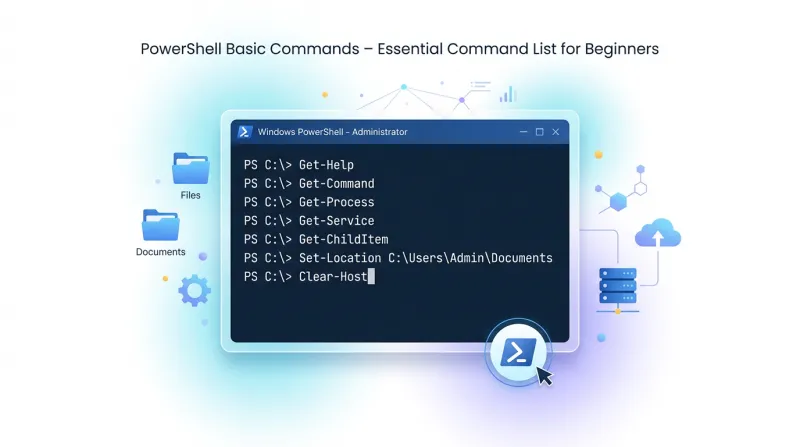
 PowerShell is a command-line shell, scripting language, and automation platform widely used for Windows administration, troubleshooting, automation, and everyday system tasks. Unlike traditional command-line tools that primarily work with plain text, PowerShell usually works with structured objects.
Most PowerShell commands follow a simple Verb-Noun naming convention. For example, Get-Process retrieves running processes, Start-Service starts a Windows service, and Remove-Item deletes a file, folder, or another supported item.
This reference covers the essential PowerShell commands that beginners and system administrators use most frequently.
PowerShell Help and Command Discovery
PowerShell includes built-in tools to find commands and learn how they work.
| Command | Description | Example |
|---|---|---|
| Get-Command | Lists commands available in the current PowerShell environment. | Get-Command |
| Get-Command *name* | Searches for commands containing a specific word. | Get-Command *service* |
| Get-Help | Displays help information about a command. | Get-Help Get-Process |
| Get-Help -Examples | Displays examples for a command. | Get-Help Copy-Item -Examples |
| Get-Help -Detailed | Shows detailed command documentation. | Get-Help Get-Service -Detailed |
| Get-Help -Full | Displays complete help information. | Get-Help Get-ChildItem -Full |
| Get-Help -Online | Opens online documentation when available. | Get-Help Get-Process -Online |
| Update-Help | Downloads updated PowerShell help files. | Update-Help |
| Get-Member | Shows properties and methods available on PowerShell objects. | Get-Process | Get-Member |
| Get-Verb | Lists approved PowerShell command verbs. | Get-Verb |
To list all available commands:
Get-CommandTo search for commands related to processes:
Get-Command *process*File and Folder Commands
PowerShell provides commands to create, copy, move, rename, delete, and list files and directories.
| Command | Description | Example |
|---|---|---|
| Get-ChildItem | Lists files and directories in a location. | Get-ChildItem C:\Data |
| Get-Item | Gets a specific file, directory, or another item. | Get-Item C:\Data\file.txt |
| New-Item | Creates a new file or directory. | New-Item -ItemType Directory C:\Backup |
| Copy-Item | Copies files or directories. | Copy-Item file.txt C:\Backup\ |
| Move-Item | Moves files or directories. | Move-Item file.txt C:\Archive\ |
| Rename-Item | Renames a file or directory. | Rename-Item old.txt new.txt |
| Remove-Item | Deletes files or directories. | Remove-Item old.log |
| Invoke-Item | Opens a file using its associated application. | Invoke-Item report.pdf |
List files:
Get-ChildItem C:\LogsList files recursively:
Get-ChildItem C:\Logs -RecurseCreate a directory:
New-Item -Path C:\Backup -ItemType DirectoryCopy a directory:
Copy-Item C:\Data C:\Backup -RecurseDelete a directory and everything inside it:
Remove-Item C:\OldData -RecurseUse Remove-Item, especially with -Recurse or -Force, carefully because it can permanently delete data.
Path and Directory Navigation Commands
These commands help you navigate the filesystem and work with paths.
| Command | Description | Example |
|---|---|---|
| Get-Location | Displays the current working directory. | Get-Location |
| Set-Location | Changes the current working directory. | Set-Location C:\Windows |
| Push-Location | Saves the current location and moves to another one. | Push-Location C:\Temp |
| Pop-Location | Returns to the previously saved location. | Pop-Location |
| Test-Path | Checks whether a file or directory exists. | Test-Path C:\Windows |
| Join-Path | Combines multiple parts into a valid path. | Join-Path C:\Data file.txt |
| Split-Path | Returns part of a path. | Split-Path C:\Data\file.txt -Parent |
| Resolve-Path | Resolves relative paths and wildcard paths. | Resolve-Path .\*.log |
Change directory:
Set-Location C:\WindowsCheck whether a file exists:
Test-Path C:\Backup\backup.zipFile Content Commands
PowerShell can read, write, append, clear, and search text files.
| Command | Description | Example |
|---|---|---|
| Get-Content | Reads the contents of a file. | Get-Content app.log |
| Set-Content | Replaces the contents of a file. | Set-Content config.txt "Enabled=True" |
| Add-Content | Appends text to a file. | Add-Content app.log "Started" |
| Clear-Content | Removes file contents without deleting the file. | Clear-Content app.log |
| Select-String | Searches text files using words or regular expressions. | Select-String -Path *.log -Pattern "error" |
| Out-File | Writes PowerShell output to a file. | Get-Process | Out-File processes.txt |
Read a file:
Get-Content C:\Logs\application.logRead only the last 20 lines:
Get-Content C:\Logs\application.log -Tail 20Monitor a log file continuously:
Get-Content C:\Logs\application.log -WaitSearch for errors:
Select-String -Path C:\Logs\*.log -Pattern "error"Process Commands
PowerShell can display, start, stop, and monitor running processes.
| Command | Description | Example |
|---|---|---|
| Get-Process | Lists currently running processes. | Get-Process |
| Start-Process | Starts an application or executable. | Start-Process notepad.exe |
| Stop-Process | Stops a running process. | Stop-Process -Name notepad |
| Wait-Process | Waits for a process to terminate. | Wait-Process -Name installer |
| Debug-Process | Attaches a debugger to a running process. | Debug-Process -Name application |
Find a process:
Get-Process chromeStart an application:
Start-Process notepad.exeStop a process:
Stop-Process -Name notepadStop a process by ID:
Stop-Process -Id 4528Windows Service Commands
You can manage Windows services directly from PowerShell.
| Command | Description | Example |
|---|---|---|
| Get-Service | Lists Windows services. | Get-Service |
| Start-Service | Starts a stopped service. | Start-Service Spooler |
| Stop-Service | Stops a running service. | Stop-Service Spooler |
| Restart-Service | Restarts a service. | Restart-Service Spooler |
| Suspend-Service | Pauses a service when supported. | Suspend-Service <Name> |
| Resume-Service | Resumes a paused service. | Resume-Service <Name> |
| Set-Service | Changes service configuration. | Set-Service Spooler -StartupType Automatic |
Show running services:
Get-Service | Where-Object Status -eq RunningSearch for a service:
Get-Service *update*Basic Computer Information Commands
These commands provide useful information about the local Windows system.
| Command | Description | Example |
|---|---|---|
| Get-ComputerInfo | Displays detailed Windows and computer information. | Get-ComputerInfo |
| Get-HotFix | Lists installed Windows hotfixes and updates. | Get-HotFix |
| Get-TimeZone | Displays the configured time zone. | Get-TimeZone |
| Get-Uptime | Shows how long the operating system has been running. | Get-Uptime |
| Restart-Computer | Restarts the computer. | Restart-Computer |
| Stop-Computer | Shuts down the computer. | Stop-Computer |
| Rename-Computer | Changes the Windows computer name. | Rename-Computer -NewName PC-01 |
| Clear-RecycleBin | Empties the Windows Recycle Bin. | Clear-RecycleBin -Force |
Display selected system information:
Get-ComputerInfo |
    Select-Object WindowsProductName, WindowsVersion, CsName
Variable Commands
PowerShell variables begin with $.
Example:
$server = "server01"PowerShell also provides commands to manage variables explicitly.
| Command | Description | Example |
|---|---|---|
| Get-Variable | Lists available variables. | Get-Variable |
| New-Variable | Creates a new variable. | New-Variable -Name Server -Value "server01" |
| Set-Variable | Creates or changes a variable. | Set-Variable Server "server02" |
| Clear-Variable | Clears the value stored in a variable. | Clear-Variable Server |
| Remove-Variable | Deletes a variable. | Remove-Variable Server |
In most scripts, variables are created directly:
$name = "John"
$count = 10
$enabled = $true
Environment Variables
You can access environment variables through the PowerShell Env: provider.
List environment variables:
Get-ChildItem Env:Display the PATH variable:
$env:PATHCreate an environment variable for the current process:
$env:APP_ENV = "production"Date and Time Commands
| Command | Description | Example |
|---|---|---|
| Get-Date | Gets the current date and time. | Get-Date |
| Set-Date | Changes the system date and time. | Set-Date -Date "2026-09-09 12:00" |
| New-TimeSpan | Calculates or creates a time interval. | New-TimeSpan -Start $start -End $end |
| Start-Sleep | Pauses PowerShell execution. | Start-Sleep -Seconds 5 |
| Get-Uptime | Displays system uptime. | Get-Uptime |
Format the current date:
Get-Date -Format "yyyy-MM-dd HH:mm:ss"Pause execution:
Start-Sleep -Seconds 10Input and Output Commands
| Command | Description | Example |
|---|---|---|
| Write-Output | Sends objects to the PowerShell output stream. | Write-Output "Hello" |
| Write-Host | Writes text directly to the console. | Write-Host "Hello" |
| Write-Error | Generates an error message. | Write-Error "Failed" |
| Write-Warning | Displays a warning message. | Write-Warning "Low disk space" |
| Write-Verbose | Displays verbose information when enabled. | Write-Verbose "Connecting" -Verbose |
| Write-Debug | Displays debugging information. | Write-Debug "Value=$x" |
| Write-Information | Writes information to the information stream. | Write-Information "Complete" |
| Write-Progress | Displays a progress indicator. | Write-Progress -Activity "Working" -PercentComplete 50 |
| Read-Host | Reads input from the user. | $name = Read-Host "Name" |
| Out-Null | Discards output. | Get-Process | Out-Null |
Example:
$name = Read-Host "Enter your name"
Write-Output "Hello $name"
Basic Formatting Commands
| Command | Description | Example |
|---|---|---|
| Format-Table | Displays output as a table. | Get-Service | Format-Table Name,Status |
| Format-List | Displays object properties as a list. | Get-Process powershell | Format-List * |
| Format-Wide | Displays a single property across multiple columns. | Get-Process | Format-Wide Name |
| Out-String | Converts formatted output into text. | Get-Process | Out-String |
Example:
Get-Service |
    Format-Table Name, Status
Place formatting commands at the end of a pipeline.
Archive Commands
PowerShell includes built-in support for ZIP archives.
| Command | Description | Example |
|---|---|---|
| Compress-Archive | Creates or updates a ZIP archive. | Compress-Archive C:\Data C:\Backup\data.zip |
| Expand-Archive | Extracts a ZIP archive. | Expand-Archive data.zip C:\Data |
Create an archive:
Compress-Archive `
    -Path C:\Logs\* `
    -DestinationPath C:\Backup\logs.zip
Extract an archive:
Expand-Archive `
    -Path C:\Backup\logs.zip `
    -DestinationPath C:\Logs
PowerShell Command History
| Command | Description |
|---|---|
| Get-History | Lists commands executed during the current session. |
| Invoke-History | Runs a previous command from session history. |
| Clear-History | Clears session history. |
| Add-History | Adds entries to PowerShell session history. |
Example:
Get-HistoryRun command number 10 again:
Invoke-History 10Common PowerShell Aliases
Aliases provide shorter names for commonly used PowerShell commands.
| Alias | PowerShell Command | Description |
|---|---|---|
| ls | Get-ChildItem | Lists files and directories. |
| dir | Get-ChildItem | Lists files and directories. |
| gci | Get-ChildItem | Short alias for Get-ChildItem. |
| cd | Set-Location | Changes the current directory. |
| pwd | Get-Location | Displays the current directory. |
| cat | Get-Content | Reads file contents. |
| cp | Copy-Item | Copies files or directories. |
| mv | Move-Item | Moves files or directories. |
| rm | Remove-Item | Deletes items. |
| del | Remove-Item | Deletes items. |
| ren | Rename-Item | Renames an item. |
| cls | Clear-Host | Clears the console. |
| echo | Write-Output | Writes output. |
| % | ForEach-Object | Processes pipeline objects. |
| ? | Where-Object | Filters pipeline objects. |
To see all aliases available on the system:
Get-AliasTo check a specific alias:
Get-Alias lsClear the PowerShell Console
Use:
Clear-HostCommon alias:
clsCheck the PowerShell Version
The automatic $PSVersionTable variable contains version information.
$PSVersionTableTo display only the PowerShell version:
$PSVersionTable.PSVersionHow to List All PowerShell Commands
The exact command set available on a computer depends on the installed PowerShell version, operating system, modules, Windows features, and third-party software.
To list available commands:
Get-CommandTo list only cmdlets:
Get-Command -CommandType CmdletTo list installed modules:
Get-Module -ListAvailableConclusion
The commands in this guide form the basic foundation of PowerShell. They cover command discovery, files and directories, paths, file contents, processes, Windows services, variables, date and time, basic system information, input and output, archives, command history, and common aliases.
PowerShell becomes significantly more powerful once you understand its object-based pipeline and data-processing capabilities. Those topics, including Where-Object, ForEach-Object, Select-Object, Sort-Object, CSV, JSON, XML, object manipulation, and advanced pipeline operations, are best covered separately in a dedicated PowerShell Pipeline and Data Processing Commands reference.